A dedicated import workflow brings 3D DWF models exported from Autodesk® Navisworks® software, alongside GLB, glTF, OBJ and STL files, into the same workspace used to place detectors and calculate coverage.
01
Export your model from Navisworks
Open your .NWD model in Navisworks Manage or Simulate and export it as a 3D DWF file. In safe3D, open File → Import → DWF (3D Model) and select the exported Navisworks model. safe3D scans the file before preparing the model for analysis.
02
Choose the study area
Import the accepted model or enter crop bounds for the area you want to assess. Review size and estimated memory demand before continuing.
03
Set the working position
When a model uses large coordinates, smart import can translate the study area to simpler working coordinates near the local origin. safe3D retains the original coordinate reference, with options to use the original coordinates during assessment. This makes it easier to check detector and zone locations against the native 3D model.
04
An intuitive workflow on the model
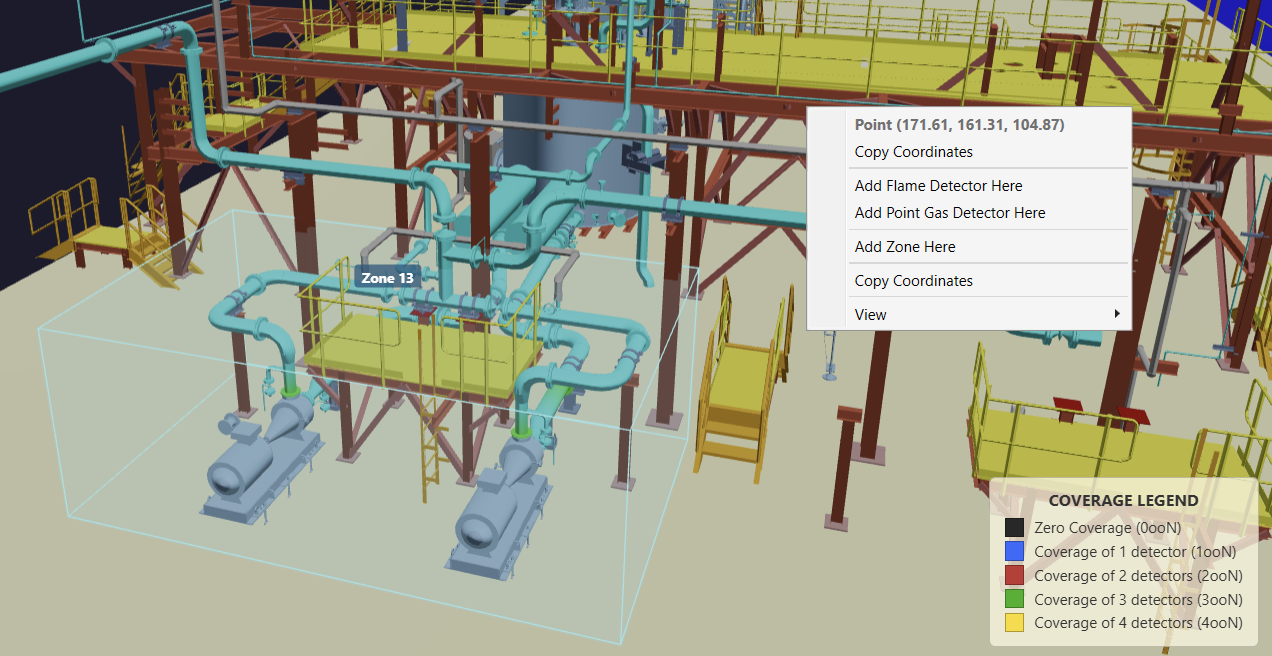
Right click and drag on the model to add a zone. Right click at the desired location to add a detector. This intuitive workflow keeps zone creation and detector placement in the 3D view, with the imported equipment and structures included in flame obstruction checks.
Also supportedGLB / glTF · OBJ · STL
Place detectors where the equipment is. Right click and drag to add a zone, or right click to add a detector. Refine its properties directly within the study.
Make the assumptions explicit.
Define what you are assessing before interpreting a coverage percentage.
A
Zones & subzones
Set the study boundaries and sampling grid. Add subzones for local areas and null zones for space you want excluded from the calculation.
The result refers to a defined assessment volume.
B
Detector properties
Set flame detector position, orientation and field of view. Place point gas detectors or define the transmitter and receiver for an open path detector.
The layout is tied to positions in the model.
C
Risk grades and detection coverage targets
Use risk grades to assign the detection coverage targets established for your assessment, guided by the performance based approach in ISA TR84.00.07. Configure coverage targets, flame field of view scaling, gas cloud sizes and gas voting logic for each risk grade.
Review calculated coverage against the targets assigned to your assessment zones.
Understand what each detector layout covers.
Explore the calculation and the view it produces. The images below are captured from safe3D.
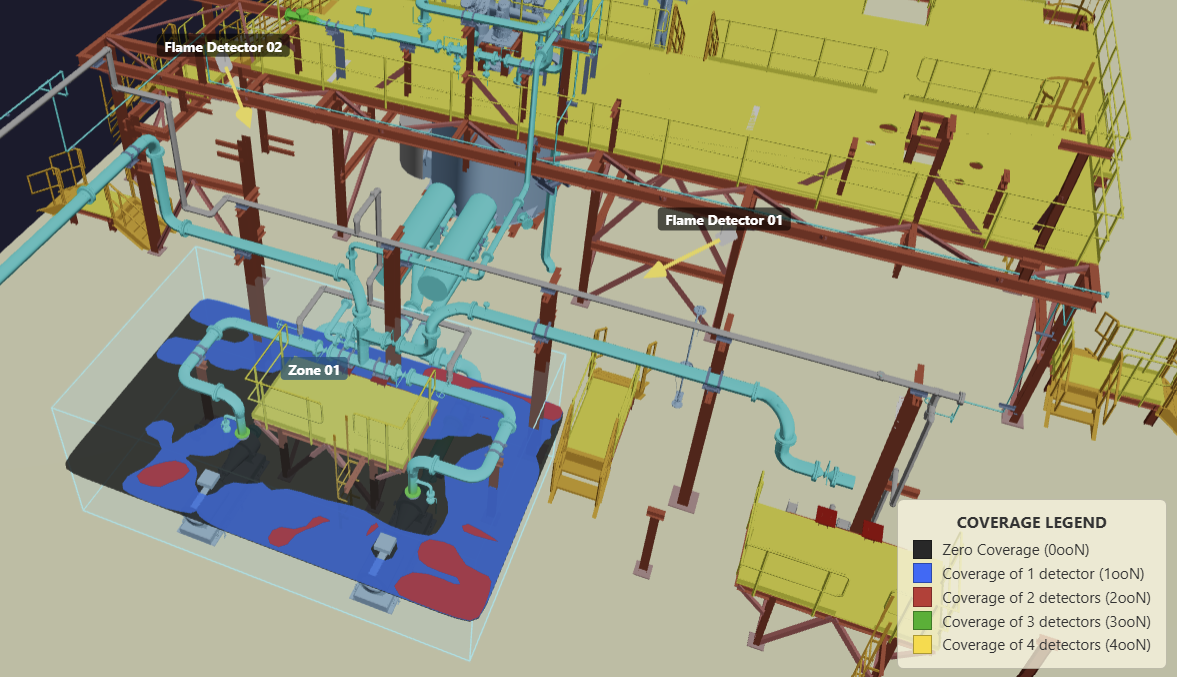
Account for what stands between a detector and a fire.
safe3D evaluates sample points against each enabled flame detector’s field of view and checks whether the imported geometry blocks the line of sight.
What you inspect
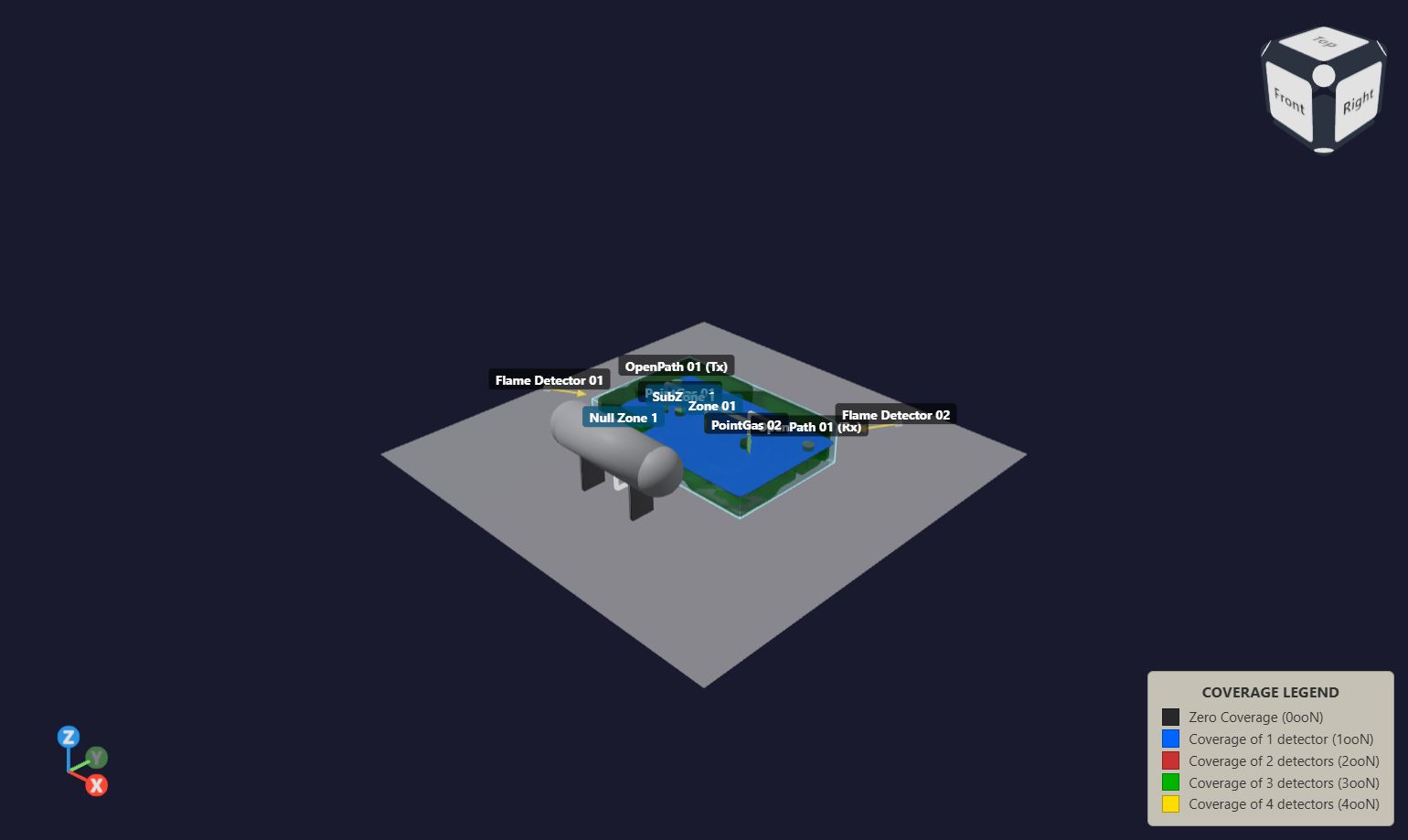
Uncovered locations, single detector coverage and overlapping coverage, shown in the context of the plant.
How you use it
Adjust the position or orientation of a detector, recalculate, and compare the resulting gaps and coverage percentages.
A coverage slice places gaps and overlap alongside the equipment that shapes them.
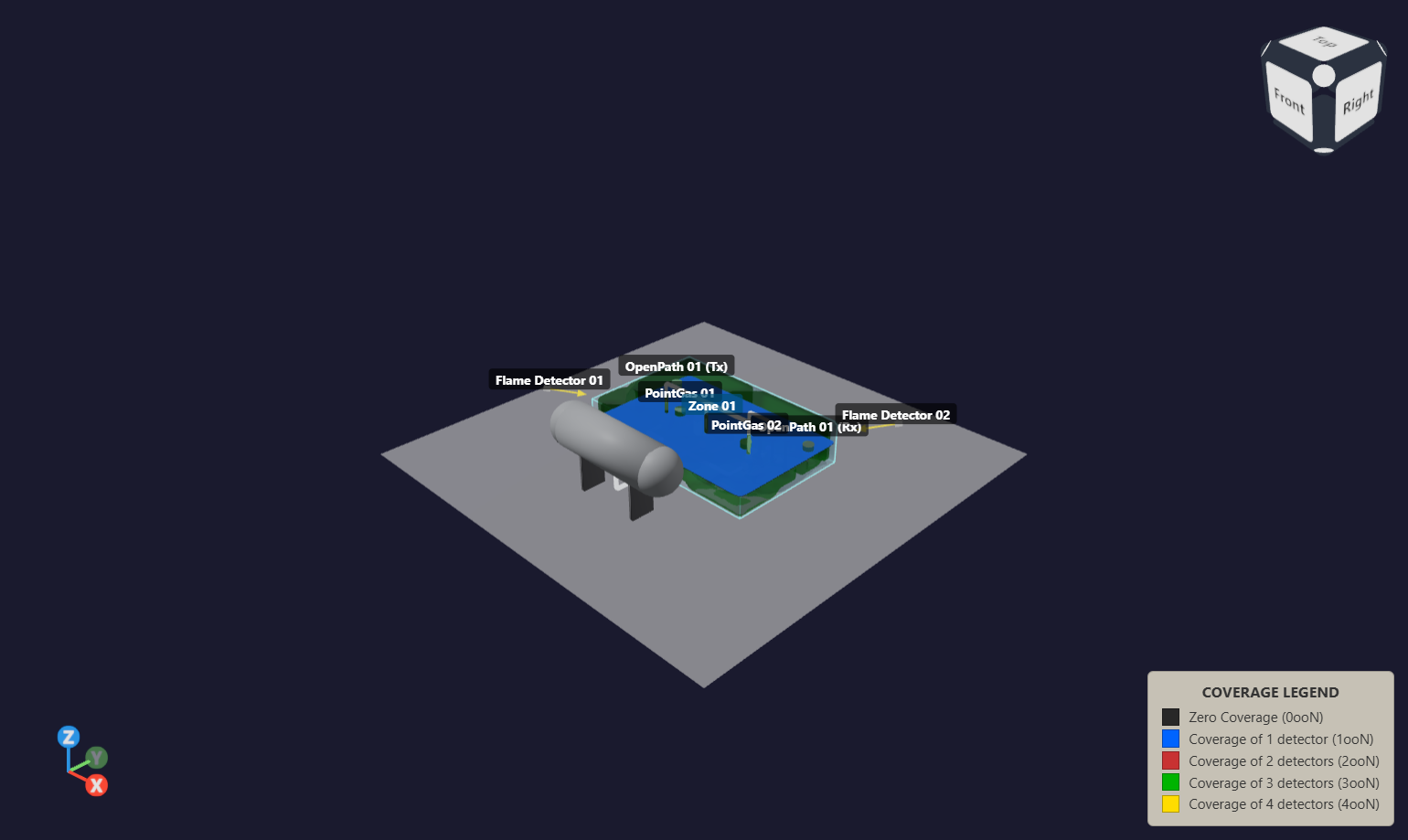
Evaluate coverage against your gas cloud assumptions.
Set the low and high alarm cloud sizes in the risk grade. safe3D evaluates point and open path gas detectors against the configured cloud and alarm parameters.
What you inspect
Gas coverage results and spatial views for the selected voting logic, including LoLo, LoHi and HiHi.
How you use it
Change detector locations or study assumptions, recalculate, and inspect how the coverage changes.
This is geometric gas detection mapping. Gas cloud sizes are inputs to the study; these views do not simulate a dispersing release.
Tutorial study: point gas and open path detectors displayed with gas coverage visualisation.
See where the result sits inside your study area.
Inspect an isocontour at a selected elevation or an isovolume in 3D. Select the detection level you want to examine alongside zones and equipment.
What you inspect
Coverage boundaries at a working height or across a volume, rather than a percentage alone.
How you use it
Review local coverage around equipment and subzones. Use model visibility, standard views and the clip plane to inspect the study.
Spatial views depend on the study geometry, sampling resolution and selected coverage settings.
Tutorial study: subzone and null zone definitions in the 3D model.
Take the result into the engineering review.
Review coverage numerically, then export the data and model views needed to explain the study.
Illustrative tutorial result. Percentages belong to this example study and are not a software accuracy claim.
VIEW
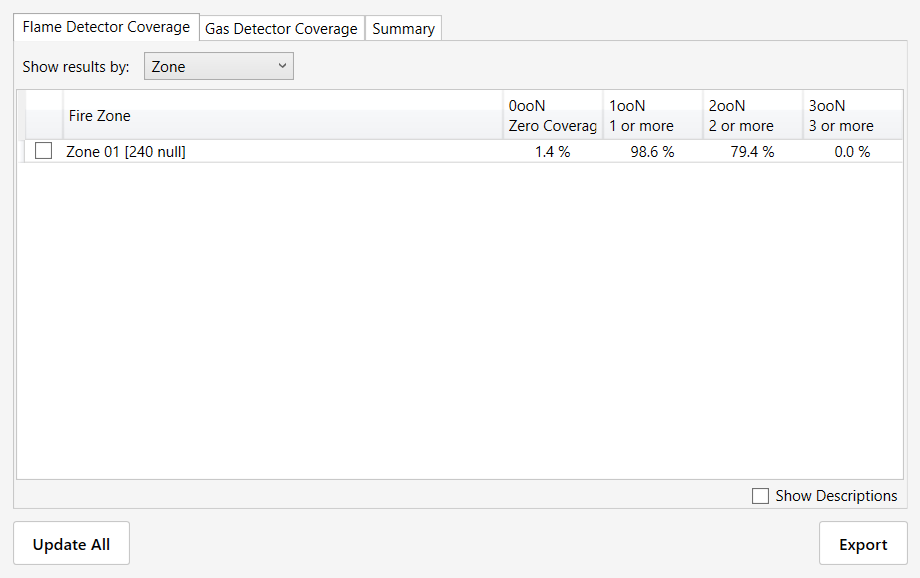
Coverage statistics
Review fire and gas results by zone. Read 0ooN as uncovered, 1ooN as coverage by at least one detector, and 2ooN as coverage by at least two.
CSV
Study data
Export detector schedules, zone definitions, risk grades and fire or gas coverage results for use in your own documents.
XLSX
Structured workbook Pro
Bring detectors, zones, risk grades and coverage results into separate worksheets. Choose working coordinates, original source coordinates, or both.
PNG
The view behind the numbers
Export a screenshot of the model and coverage visualisation to illustrate the locations being discussed.
Understand each detector’s role. Document the complete study.
Connect individual detector performance to the coverage of the layout as a whole.
01 / CONTRIBUTIONS
Detector contributions
Review the additional and cumulative coverage contributed by individual flame detectors, calculated from the study results.
See which detectors add coverage to the layout.
02 / RANKINGS
Detector rankings
Rank flame detectors by the change in 1ooN and 2ooN coverage when each detector is disabled.
Compare the effect of losing a detector.
03 / PDF
PDF reporting
Bring study settings, coverage results and model views together in a report that can be shared for review.
Present the assumptions alongside the results.
05 / SHARE AND REVIEW
Open the study in your browser.
Save your study with its model and coverage results, then share the native .safe3D file. Recipients can open it in the online viewer for read only review. Editing and recalculation remain in the desktop software.
Open your .NWD model in Navisworks Manage or Simulate and export the required 3D geometry as a 3D DWF file. Import the exported Navisworks model into safe3D, where the import workflow scans the model and lets you select a study area.
What does a coverage percentage represent?
It describes the calculated detection coverage of the eligible sample points in your configured zone. Geometry, detector settings, exclusions, grid spacing and study criteria determine the result. A percentage should be reviewed together with those inputs and the spatial coverage view.
Can I keep the original model coordinates?
When a model uses large coordinates, smart import can translate the study area to simpler working coordinates near the local origin. safe3D retains the original coordinate reference, with options to use the original coordinates during assessment. This makes it easier to check detector and zone locations against the native 3D model. The Pro Excel export can include working coordinates, original coordinates or both.
How do I compare detector layouts?
Save your initial study and export its results. Change detector positions, orientations or enabled states, recalculate coverage, and compare the new percentages and spatial views using the same study settings.
Explore fire and gas mapping.
Understand the study process, coverage measures and the workflow behind the results.